
Check your speaker output
If multiple audio output devices are available, check that you have the appropriate one selected. Here's how:
Select the Speakers  icon on the taskbar.
Next, select the arrow to open a list of audio devices connected to your computer.
Check for Mute Status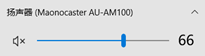
Check that your audio is playing to the audio device you prefer, such as a speaker or headphones.
Check your cables, plugs, jacks, volume, speaker, and headphone connections
Try these steps
Check your speaker and headphone connections for loose cords or cables. Make sure all cords and cables are plugged in.
Make sure the power is turned on and check the volume level.
Make sure the mute setting is not turned on, and try turning up all the volume controls.
Remember some speakers and apps have their own volume controls. Be sure to check them all.
Try connecting your speaker and headphones to a different USB port.
It's possible that your speakers won't work when your headphones are plugged in. Unplug your headphones and see if that helps.
Check your microphone
Windows 10’s Settings app has a few options that disable your microphone system-wide, in all applications. If your webcam is disabled in Settings, even desktop applications can’t receive microphone input.
This is a bit confusing. In general, the app permissions under Settings > Privacy only affect new applications from the Store, also known as Universal Windows Platform, or UWP, applications. But the microphone and webcam options also affect desktop applications.
If your microphone isn’t working, head to Settings > Privacy > Microphone.
At the top of the window, check that it says “Microphone access for this device is on.” If Windows says microphone access is off, click the “Change” button and set it to “On.” If access is off, Windows and all applications on your system can’t access audio from your microphone.
Below that, ensure “Allow apps to access your microphone” is set to “On.” If microphone access is off, all applications on your system won’t be able to hear audio from your microphone. However, the Windows operating system itself will still have access.
Under “Choose which apps can access your microphone,” ensure the app that wants to access your microphone isn’t listed and set to “Off.” If it is, set it to “On.”
Only new-style apps from the Store appear here. Traditional desktop apps from outside the Store will never appear in this list and will always have access to your microphone as long as the “Allow apps to access your microphone” setting is on.
Select Replacement “sample rate and bit”
Right click on the sound icon
click on“Sound”
Quick Tools
One-click_to_open_the_sound_control_panel.bat
click on ”Recording”
click on “Properties”
click on “advanced”
Select Replacement “sample rate and bit”
Test to see if it works
Adjust the sound level
Right click on the sound icon
click on“Sound”
Set Microphone as default recording device in
"Recording" of sound setting.
Double click "Maono Microphone"
go to "Properties", and select "Levels" and set it
to 100.
Check sound settings
Check to make sure your audio devices aren't muted and haven't been disabled.
Right-click the Speakers icon on the taskbar, and then select Open Volume mixer.
You’ll see a set of volume controls for your devices. Make sure none of them are muted. If any of them are muted, you’ll see a red circle with a line through it next to the volume control. In that case, select the volume control to unmute.
Check your device properties to make sure that your devices have not been disabled by mistake. Select Start > Settings > System > Sound .
Select your audio device, and then select Device properties. Be sure to select Device properties for both the output and input devices.
Make sure the Disable check box is cleared for the output and input devices.
Fix your audio drivers
Step 1
Hardware problems can be caused by outdated or malfunctioning drivers. Make sure your audio driver is up to date and update it if needed. If that doesn't work, try uninstalling the audio driver (it will reinstall automatically). If that doesn't work, try using the generic audio driver that comes with Windows. If you're having audio issues after installing updates, try rolling back your audio driver.
To update your audio driver automatically
In the search box on the taskbar, type device manager, then select it from the results.
Select the arrow next to Sound, video and game controllers to expand it.
Right-click the listing for your sound card or audio device, such as headphones or speakers, select Update driver, then select Search automatically for updated driver software. Follow the instructions to complete the update.
Step 2
If Windows doesn't find a new driver, look for one on the device manufacturer's website and follow those instructions. If that doesn't work, try uninstalling your audio driver.
To uninstall your audio driver
In the search box on the taskbar, type device manager, then select it from the results.
Select the arrow next to Sound, video and game controllers to expand it.
Right-click the listing for your sound card or audio device, select Uninstall device, select the Delete the driver software for this device check box, and then select Uninstall.
Step 3
Restart your PC.
Note: Be sure to save documents and any other current work before you restart.
This restart will automatically prompt your PC to reinstall your audio driver.
To restart, select Start > Power > Restart .
If those options didn’t work, try using the generic audio driver that comes with Windows.
To use the generic audio driver that comes with Windows
In the search box on the taskbar, type device manager, then select it from the results.
Select the arrow next to Sound, video and game controllers to expand it.
Right-click the listing for your sound card or audio device, then select Update driver > Browse my computer for driver software > Let me pick from a list of device drivers on my computer.
Select the audio device whose driver you want to update, select Next, and then follow the instructions to install it.
Step 4
If these steps didn't solve your audio issue, visit your device manufacturer’s website and install the most recent audio/sound drivers for your device. Following is an example of a driver download page for a sound device manufacturer.
Step 5
If you have audio issues after installing updates
If your audio was working before you ran Windows Update and now isn’t working, try rolling back your audio driver.
To roll back your audio driver
In the search box on the taskbar, type device manager, then select it from the results.
Select the arrow next to Sound, video and game controllers to expand it.
Right-click the listing for your sound card or audio device, then select Properties.
Select the Driver tab, then select Roll Back Driver.